
LocalSend: A Privacy-First AirDrop Alternative
Learn how to use LocalSend: a free, open-source, cross-platform file-sharing tool. This tutorial covers installation, security, and privacy.

What is LocalSend?
What if you could seamlessly send any file, from any device, anywhere on your network without having to jump through the "I'll just email it to myself" hoop?
For many tech enthusiasts, having a single, unified tech ecosystem is the ultimate goal. Unfortunately, many manufacturers have made this challenging through the development of proprietary protocols for their own devices. Apple devices work well with other Apple devices, but what about Android? Or Windows? While support has increased in recent years (especially with text messaging), it is by no means perfect. Open-source developers have long taken it upon themselves to solve these sorts of problems.
In comes LocalSend, a free, open-source solution to many of your local file-sharing problems. Through the use of LAN multicast groups and on-the-fly generation of TLS/SSL certificates, LocalSend has the capability to encrypt and share any file to any device with the LocalSend software installed, provided it's on your local network. The app comes with strong cross-platform support including apps for Apple, Android, Windows, Mac, Linux, and even Amazon's Fire OS. For those not wanting to download an app, LocalSend also hosts a web app with much of the same functionality. For the purposes of this discussion, we will be focusing on the app itself.
LocalSend Walk-Through
Navigating to the Website
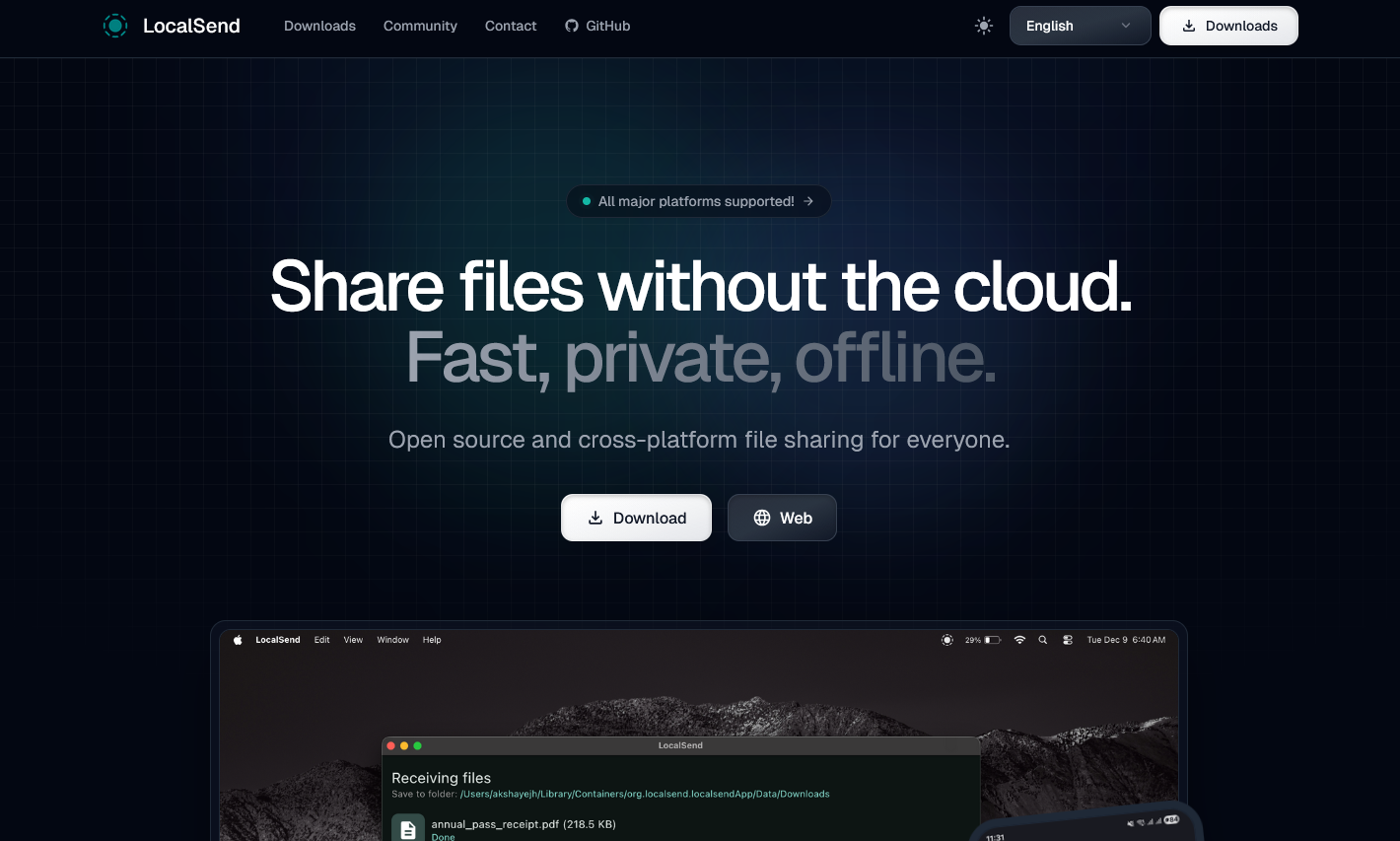
Visit www.localsend.org to download LocalSend. Here you will find two options for using LocalSend: (1) downloading an app to your device and (2) using the application in the web browser (no installation).
Platform Support
Thankfully, LocalSend is supported on most major platforms! Below is a breakdown of what platforms are supported at the time of writing (April 2026).
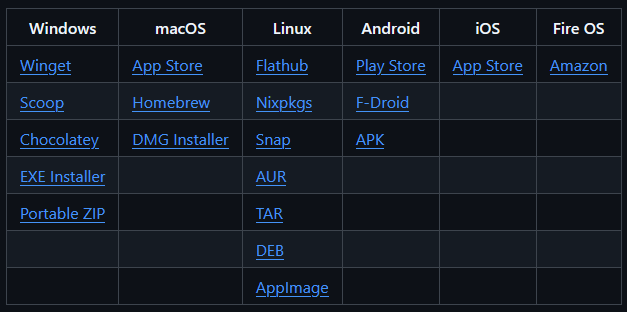
Long-time Linux users will be pleased to find ample support for all major distributions due to the variety of package types available: Flathub, Nixpkgs, Snap, Arch User Repository, TAR, Debian Packages, and Appimage. Privacy-conscious Android users will also be pleased to know LocalSend is available through both F-Droid and a standalone APK that can be installed manually. For other operating systems, you'll have support to use your preferred method.
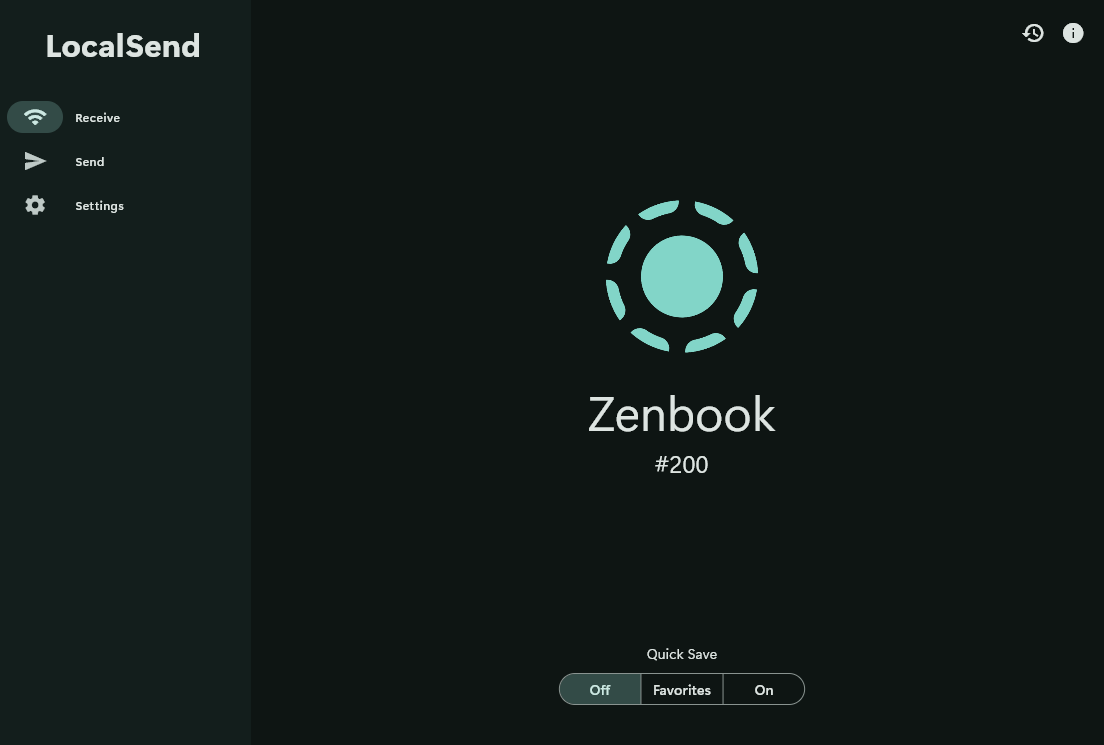
After installing the app with your preferred method on whichever operating system of your choosing, you'll be faced with the receive page of LocalSend, the app's default. The app gives you several options to change the look and feel under Settings > General > Theme and Color.
Transferring Files
To transfer a file using LocalSend, both devices must have the app (either installed or in a web browser) open. You must open the receiving tab on the destination device and the send tab on the device sending the file.
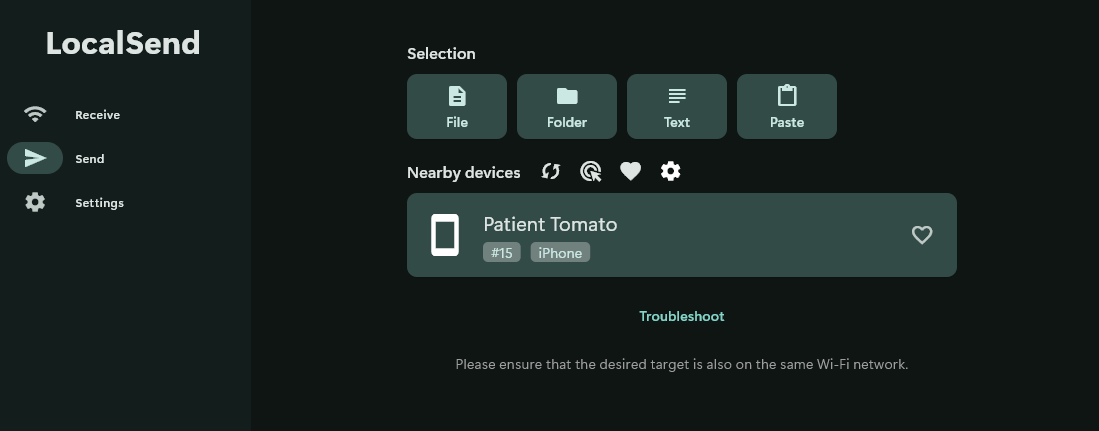
LocalSend offers three transport modes: single recipient, multiple recipients, and share via link. The third option allows you to share a file with a device that does not have LocalSend installed while the first two allow you to send to one device or multiple devices, respectively, making this a good option for sharing files en masse.
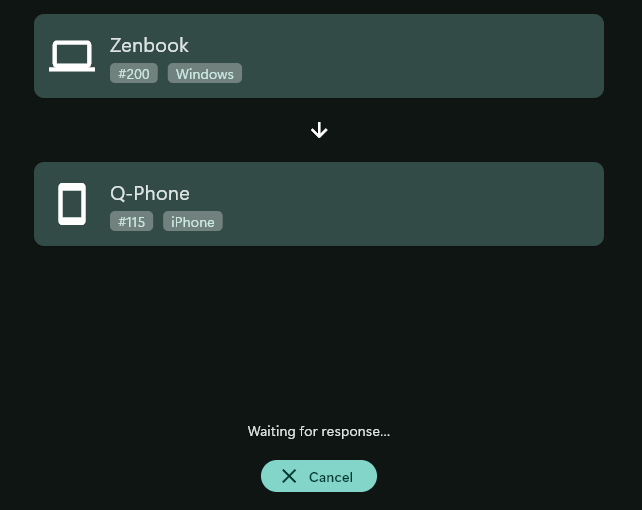
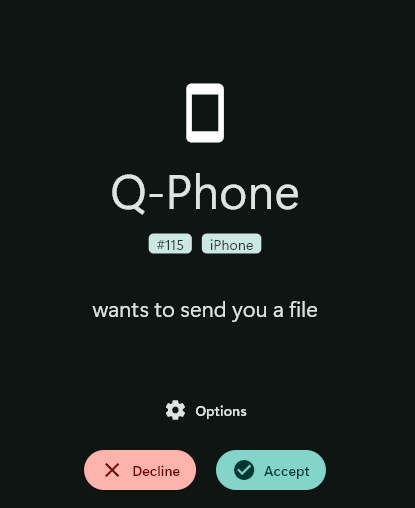
Before selecting an available device to share to, you must first select what file you want to share. This can be a file of any kind, or a folder, text, or information from your clipboard. Once you're satisfied with the selection, select a device in the list to transfer your files. Upon selecting a device, the sending device will display a "waiting for response..." page while the receiving device asks if you want to save the file. There are ample settings to automatically save files, configure a pin number for extra security, and even toggle encryption on/off (by default it is set to on).
Changing Device Names
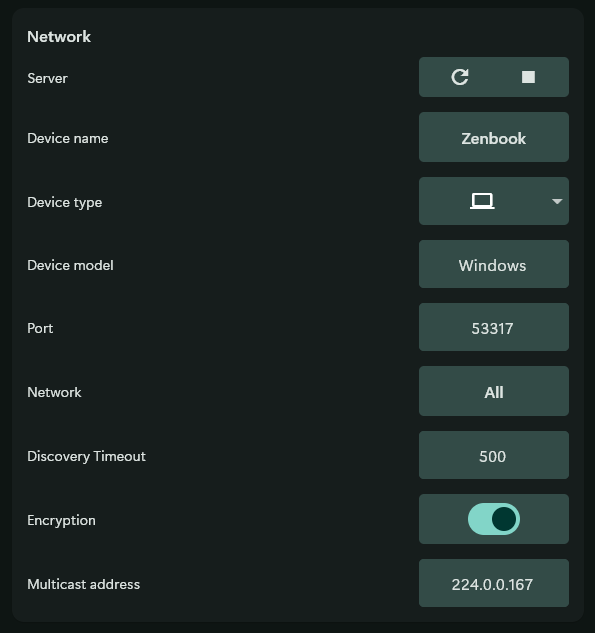
You may have noticed that the initial name for my iPhone was "Patient Tomato". This is yet another setting that can be changed and is located at Settings > Network > Device Name. For this change to take effect, you must also restart the LocalSend service by hitting the restart button in the Server section above Device Name. In the screenshot below, I have toggled the Advanced Settings button, so what you see will be much simpler (i.e., only the Server and Device Name options).
Advanced Settings and Troubleshooting
Advanced Settings
For more advanced users who want full control over the functionality of LocalSend, Advanced Settings is where this capability lies. For users desiring a more granular level of control, navigate back to the Network section after toggling the Advanced checkbox at the bottom of the Settings page.
Troubleshooting
While it is unlikely you will encounter any difficulty with the default installation of LocalSend, it may be worth keeping a few things in mind:
-
Your device's firewall may be blocking LocalSend's port
- If this is the case, toggle the Advanced Settings button and navigate to your Network settings. Confirm that the port listed is 53317 (this is LocalSend's default port). If the port is correct, check your operating system's firewall to ensure it is (1) permitting the LocalSend application and (2) permitting the port number for both incoming and outgoing traffic.
-
Your devices are not recognizing each other in the app
-
The telltale cause of two devices not showing up in the app is they are not on the same network. Ensure the two devices are joined to the same network, and they should show up. If they do not, check the port and firewall settings described above.
-
If you are using a Windows system, it may also be worth checking whether your network is set to Public or Private. Public networks are more restrictive and may be blocking LocalSend's functionality.
-
-
The transfer speed is too slow
-
There are two main actions to take in the event the data transfer speed is too slow: (1) use a 5 GHz network connection or (2) disable encryption on both devices.
-
If you have an Android device receiving information, you may experience slow speeds. This is a known issue and has been documented here. At the time of writing, this issue has not been fixed (April 2026).
-
What About Privacy?
Because LocalSend does not interact with any servers outside your local network, their privacy policy reads very straightforward. To answer the question, yes, LocalSend is private, and they collect no information from their users, be it personal or non-personal. Per the developers:
LocalSend is an open-source application, and we are dedicated to user privacy. In line with this, we confirm that we do not collect, store, process, or use any personal data or non-personal data from you while you use our application.
LocalSend's developers do go on to say there is the potential of data collection by third-parties such as device manufacturers and operating systems, but clarify they have no control over this type of data collection. While LocalSend can be used as a secure, private file-sending application, it is only part of a good privacy posture!
Free, Open-Source Alternatives to LocalSend
There are many viable FOSS (free, open-source) applications on the web with similar functionalities that may suit your needs better.
Syncthing
Syncthing is a fantastic project that I've used for quite some time in the past. It allows you to configure folders on any number of devices that all automatically synchronize with each other using a global network of decentralized servers. The information sent is encrypted, so there's no worry about plaintext vulnerabilities. Syncthing also utilizes digital certificates, which means only devices you've authenticated get access to your files.
While Syncthing will synchronize files across devices, it doesn't work like AirDrop or LocalSend and can sometimes take a while to sync. It also traverses the public internet, which may not be acceptable depending on your threat model. It is a wonderful project worthy of consideration.
KDE Connect
KDE Connect is another popular app in the FOSS world, especially for Linux users who will recognize KDE as one of Linux's most popular desktop environments. That being said, KDE Connect is not just for Linux; KDE Connect is meant to work across all types of devices ranging from Android to iOS, Linux to Windows, and even macOS.
KDE Connect not only can share files, but it can also synchronize notifications, allow you to send texts from other devices, track your phone's battery from your desktop, run custom commands on connected machines, control music, control presentations, serve as a virtual trackpad, among many other features. The only caveat is sometimes the app can occasionally be buggy based on personal experience. That being said, if you're looking for an all-in-one integrated experience, it may have what you're looking for!
OnionShare
Lastly, we have OnionShare. OnionShare is a Tor-enabled file, web hosting, and IRC chat tool all rolled up into one. Like our other tools, OnionShare is supported on all major operating systems such as Windows, macOS, Linux, Android, iOS, and even de-Googled Android devices using F-Droid as their app store of choice. This makes it a great contender for privacy-conscious individuals using mobile operating systems like GrapheneOS, Calyx, or LineageOS.
Because OnionShare runs over the Tor network, you will be running over the same infrastructure as journalists, citizens, and whistleblowers under oppressive regimes. If privacy and anonymity are concerns, but you need to send files over the internet, OnionShare should definitely be worth considering.
Now What?
Now, go forth and share your files with ease and peace of mind! Have you tried LocalSend? What's your favorite feature? Let us know!
Did you like what you read? If so, subscribe for more content like this!
About The Blackwing Post
The Blackwing Post is the blog for blackwing.dev, which is on all major social media platforms including: YouTube, Mastodon, Instagram, Bluesky, Reddit, Twitch, and more!
Written by Quinn Anderson, an IT Instructor and Cybersecurity Specialist.